
Panduan · versi 2.0
Panduan Microstock Exporter Pro
Dari install sampai file siap upload. Semua screenshot diambil dari panel versi 2.0; nama file di gambar cuma contoh.
Sebelum mulai
| Komponen | Kebutuhan |
|---|---|
| Aplikasi | Adobe Illustrator CC 2019 atau lebih baru |
| Sistem operasi | Windows 10 atau 11. Versi Mac belum ada. |
| Internet | Cuma untuk aktivasi lisensi Gumroad dan pengecekan ulang berkala. Export jalan tanpa internet. |
Beberapa istilah: panel adalah jendela Microstock Exporter Pro di dalam Illustrator, artboard adalah area kerja di file .ai, dan canvas adalah ukuran halaman file hasil export.
Install di Windows
- Tutup Adobe Illustrator. Installer harus dijalankan saat Illustrator tidak terbuka.
- Ekstrak zip-nya. Klik kanan file zip, pilih Extract All. Jangan jalankan installer langsung dari dalam zip.
- Klik ganda
install-windows.batdi folder hasil ekstrak. Jendela hitam menampilkan tiga langkah laluINSTALLASI BERHASIL!Tekan tombol apa saja untuk menutupnya. - Buka Illustrator, lalu pilih
Window → Extensions → Microstock Exporter Pro.
Klik More info, lalu Run anyway. Peringatan ini muncul untuk file script yang tidak bertanda tangan digital.
Yang dilakukan installer
Installer menyalakan pengaturan PlayerDebugMode milik Adobe di registry pengguna Windows (dibutuhkan untuk extension yang dipasang di luar Adobe Exchange), lalu menyalin file extension ke %APPDATA%\Adobe\CEP\extensions\MicrostockExporter. Versi lama di folder itu diganti otomatis. Pengaturan, lisensi, dan sisa kuotamu tetap tersimpan.
Update ke versi baru
Tutup Illustrator, ekstrak zip versi baru, lalu jalankan install-windows.bat dari versi baru. Lisensi yang sudah aktif nggak perlu diaktifkan ulang.
Menghapus extension
Tutup Illustrator, lalu klik ganda uninstall-windows.bat.
FREE, trial, dan PRO
Semua orang memakai file extension yang sama. Fitur yang terbuka ditentukan status lisensi di komputermu, yang selalu terlihat di badge kecil di sebelah nama panel: TRIAL, FREE, atau PRO.
Trial PRO: 30 artboard pertama
Setelah dipasang, panel berstatus TRIAL dan semua fitur PRO terbuka untuk 30 artboard pertama yang berhasil di-export. Sisanya terlihat di bawah tombol Export, misalnya TRIAL PRO: sisa 24 dari 30 artboard. Setelah trial habis, panel otomatis jadi FREE.
Kuota FREE harian
Di mode FREE kamu bisa export EPS 10 ukuran asli dengan background putih, maksimal 10 artboard per hari. Kuota kembali penuh setiap tengah malam sesuai jam komputer. Fitur PRO tetap terlihat dengan label kecil PRO.
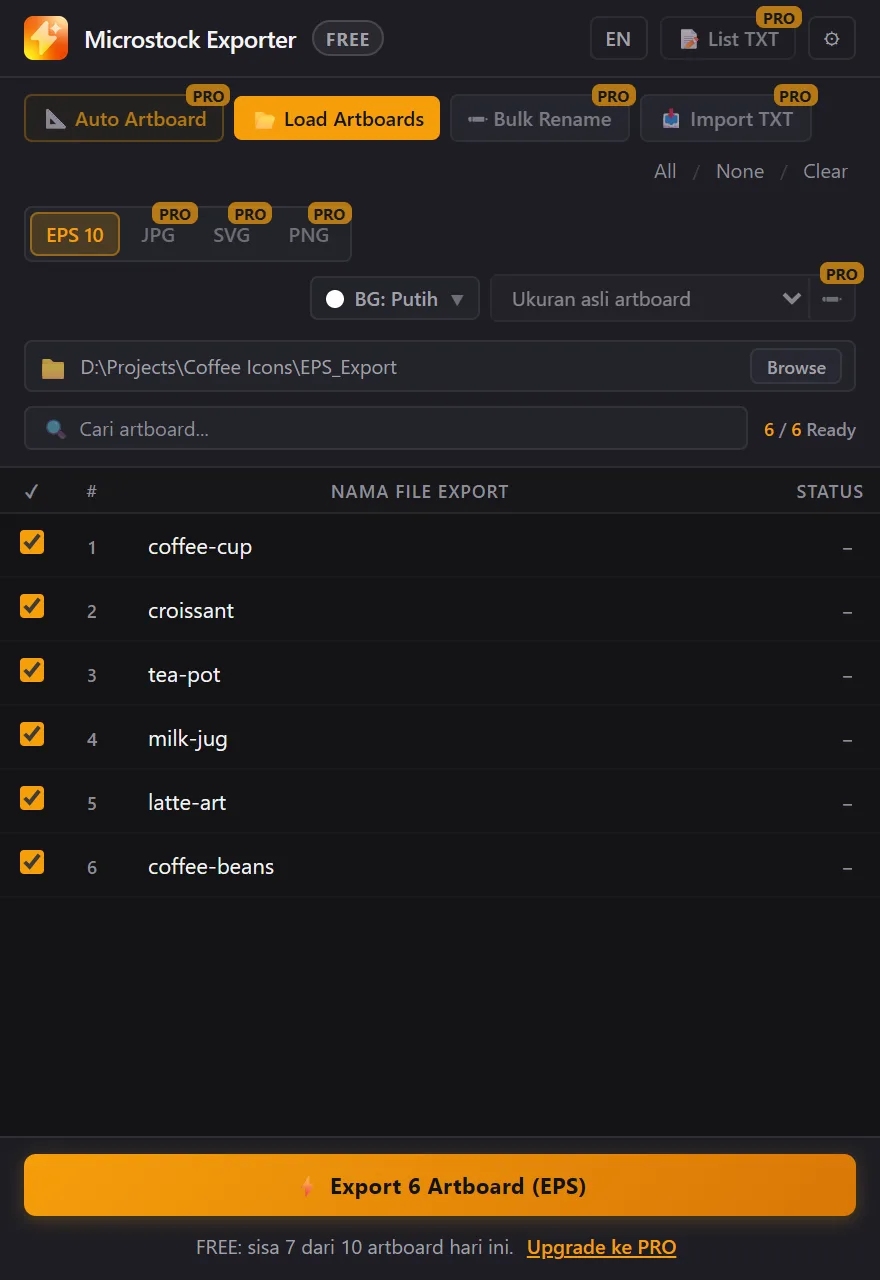
| Fitur | FREE | Trial PRO dan PRO |
|---|---|---|
| Load artboard dan rename manual | Ya | Ya |
| Export EPS 10 | Ukuran asli artboard | Semua ukuran |
| Jumlah export | 10 artboard per hari | Tanpa batas (trial: 30 total) |
| Background putih, outline teks, bersihkan stray points | Ya | Ya |
| Export JPG, SVG, PNG | Tidak | Ya |
| Preset dan ukuran canvas custom | Tidak | Ya |
| Warna background selain putih | Tidak | Ya |
| Auto Artboard, Bulk Rename, Import TXT, List TXT, Expand Strokes | Tidak | Ya |
Aktivasi PRO
Klik badge TRIAL atau FREE di pojok kiri atas panel untuk membuka jendela lisensi. Isinya status lisensi, tombol beli lewat Gumroad atau Lynk.id, kolom License Key, dan Hardware ID komputer ini. Satu lisensi berlaku untuk satu komputer.
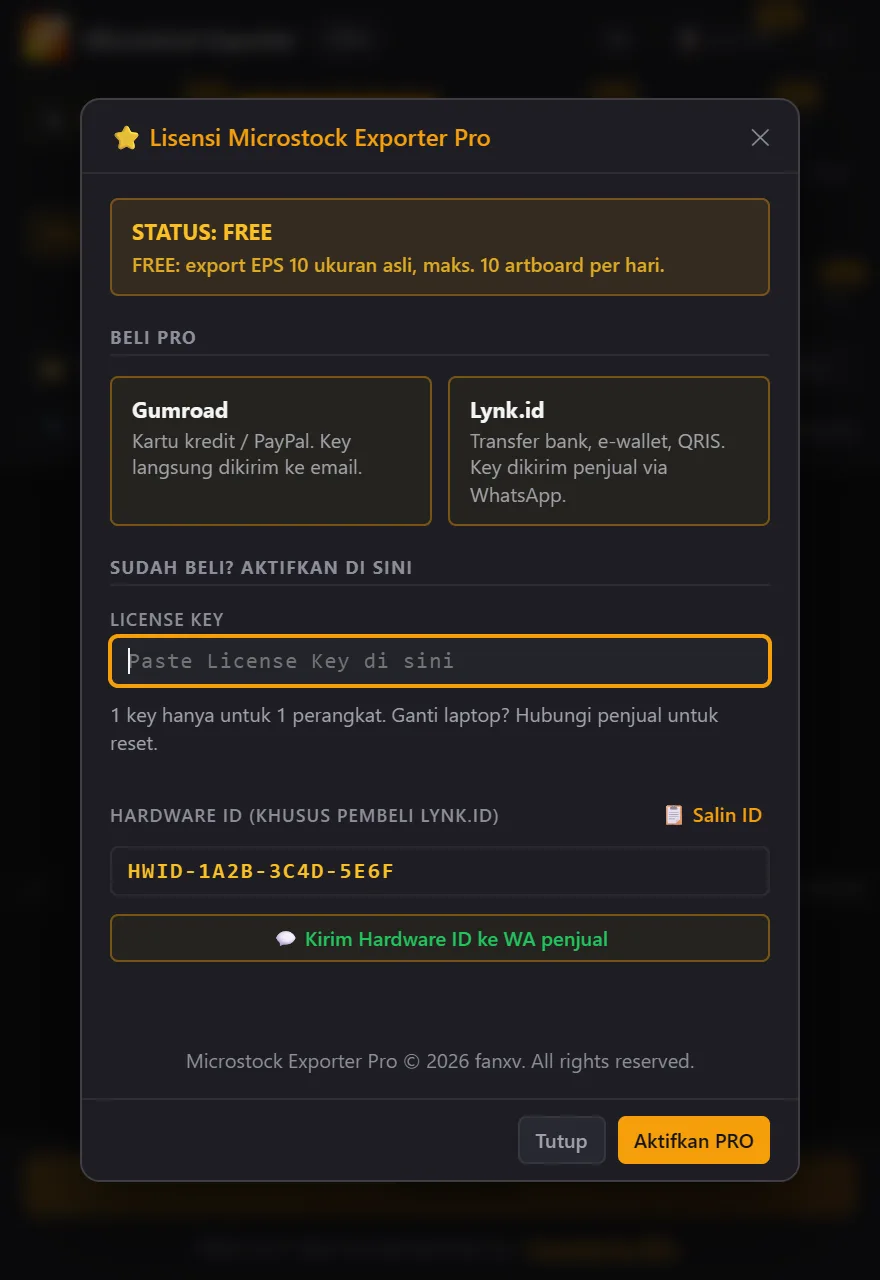
Beli lewat Gumroad (kartu kredit, PayPal)
- Klik tombol Gumroad di jendela lisensi dan selesaikan pembayaran.
- Gumroad mengirim email berisi link download dan License Key berformat
XXXXXXXX-XXXXXXXX-XXXXXXXX-XXXXXXXX. - Pastikan komputer online, paste key ke kolom License Key, lalu klik Aktifkan PRO.
Lisensi Gumroad dicek ulang otomatis setiap 14 hari saat panel dibuka dan komputer online. Kalau offline, panel tetap PRO sampai 30 hari sejak pengecekan terakhir yang berhasil.
Beli lewat Lynk.id (transfer bank, e-wallet, QRIS)
- Klik tombol Lynk.id di jendela lisensi dan selesaikan pembayaran.
- Klik Kirim Hardware ID ke WA penjual. WhatsApp terbuka dengan pesan berisi Hardware ID komputermu (format
HWID-XXXX-XXXX-XXXX). Kirim pesannya. - Aku kirim License Key khusus untuk komputermu, diawali
MSE1-. - Paste key ke kolom License Key, lalu klik Aktifkan PRO. Aktivasi Lynk.id nggak butuh internet.
Ganti komputer atau install ulang Windows
Hubungi aku dengan bukti pembelian. Pembeli Gumroad: aku reset slot perangkatmu, lalu kamu aktifkan key yang sama di komputer baru. Pembeli Lynk.id: kirim Hardware ID komputer baru, aku kirim key baru.
Kenali panel
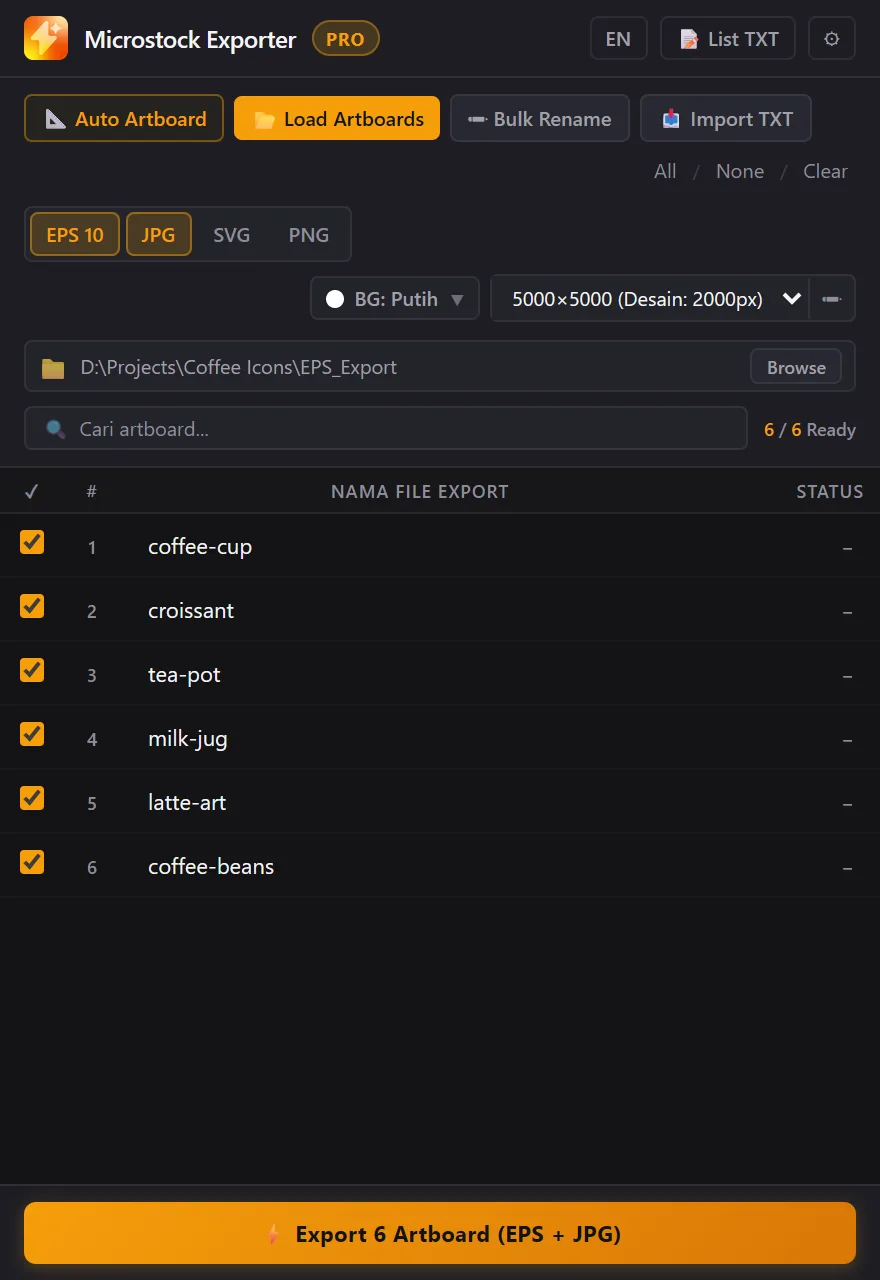
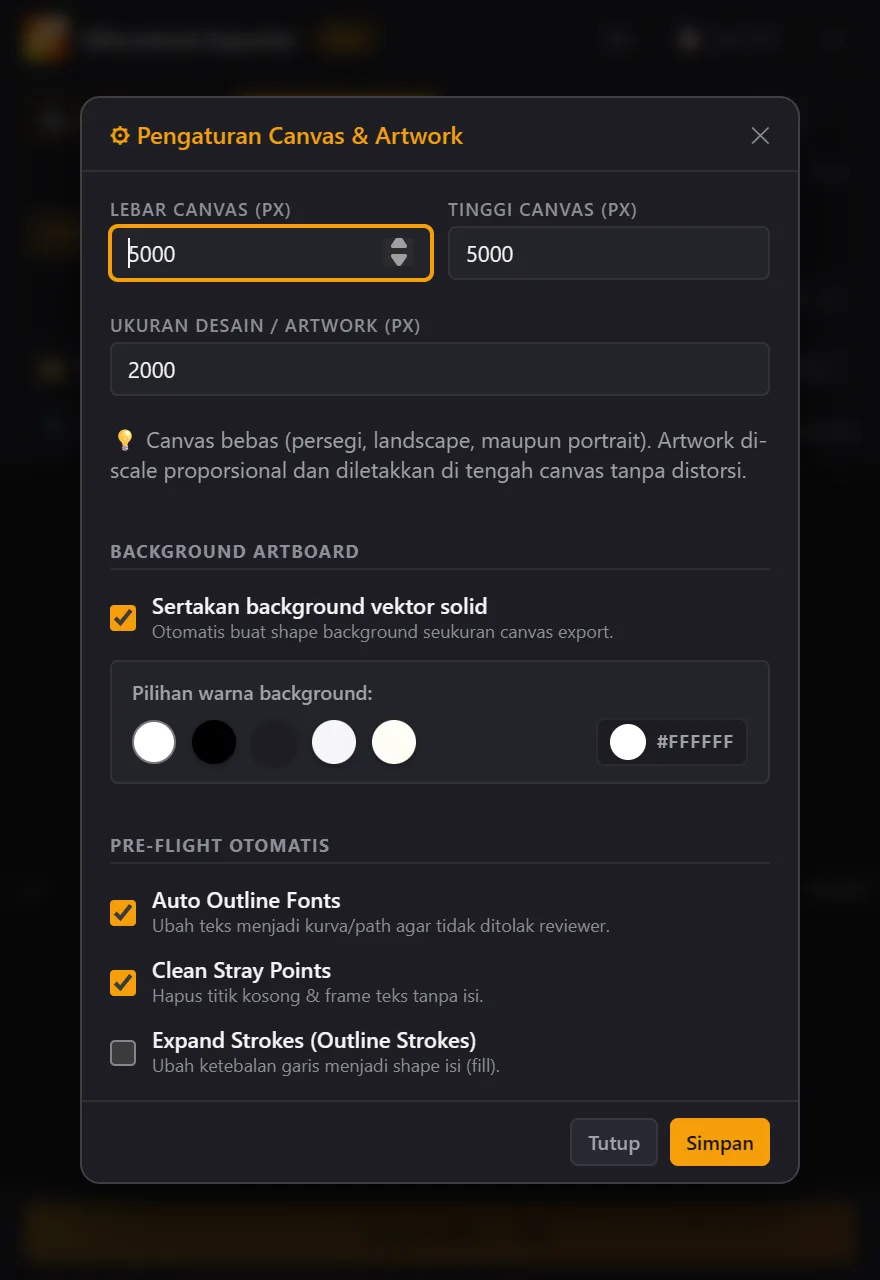
- Baris atas: badge lisensi, tombol bahasa EN/ID, List TXT, dan ⚙ untuk pengaturan canvas, background, dan pre-flight.
- Tombol aksi: Auto Artboard, Load Artboards, Bulk Rename, Import TXT, lalu All / None / Clear untuk memilih atau mengosongkan nama.
- Format dan ukuran: EPS 10, JPG, SVG, PNG (klik untuk nyala/mati), BG untuk warna background, dropdown ukuran, dan ✏ untuk ukuran custom.
- Folder dan tabel: folder tujuan dengan tombol Browse, kolom cari artboard, dan tabel berisi centang, nomor, nama file export, dan status. Angka
6 / 6 Readyberarti artboard siap export dari total artboard. - Bawah: tombol Export dengan jumlah artboard dan format, plus sisa trial atau kuota FREE.
Tombol aktif kalau minimal satu artboard dicentang dan bernama, folder tujuan terisi, dan minimal satu format dipilih.
Alur kerja cepat
Cocok untuk satu file master berisi banyak ikon atau ilustrasi.
- Siapkan file. Buka file .ai dan group setiap desain (Ctrl+G) supaya satu desain jadi satu objek.
- Buat artboard. Seleksi semua desain (Ctrl+A), klik Auto Artboard, lalu Buat Artboards. Kalau file sudah punya artboard, langsung klik Load Artboards.
- Beri nama. Ketik di tabel, pakai Bulk Rename, atau Import TXT.
- Pilih hasil. Format, ukuran canvas, dan warna background.
- Pilih folder. Klik Browse. Kalau dilewati, panel memakai subfolder
EPS_Exportdi lokasi file .ai. - Export. Klik tombol Export dan tunggu sampai semua baris berstatus Done.
Kalau file belum pernah disimpan, folder default jadi Documents\EPS_Export. Simpan dulu supaya hasil export ada di dekat file master.
Membuat dan memuat artboard
Auto Artboard PRO
Membuat satu artboard untuk setiap objek yang sedang diseleksi, urut dari kiri ke kanan, lalu baris berikutnya dari atas ke bawah. Objek yang posisi tengahnya beda kurang dari 20 pt secara vertikal dianggap satu baris. Objek terkunci atau tersembunyi dilewati.
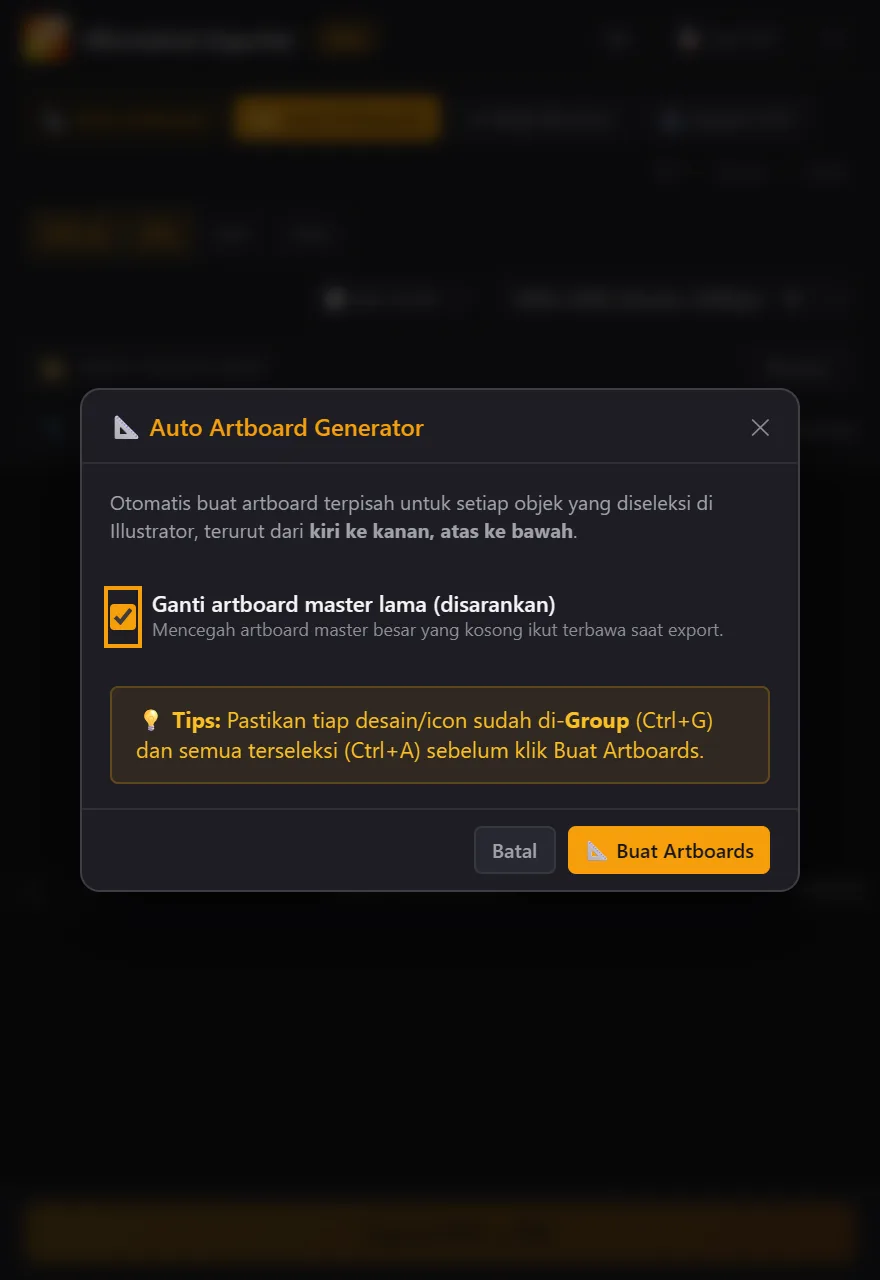
Kalau dicentang (bawaan), artboard pertama diubah mengikuti objek pertama dan artboard lain di dokumen dihapus sebelum artboard baru dibuat. Objek desainmu nggak ikut terhapus. Kalau ada artboard yang mau kamu pertahankan, hilangkan centangnya. Bisa dibatalkan dengan Ctrl+Z di Illustrator.
Load Artboards
Memuat semua artboard dari dokumen aktif ke tabel dan langsung mencentangnya. Artboard dengan nama bawaan seperti Artboard 1 dikosongkan supaya kamu beri nama baru; nama lain dirapikan otomatis. Folder yang sudah kamu pilih lewat Browse nggak akan diganti.
Memberi nama file
Aturan nama
Nama dirapikan otomatis saat kamu selesai mengetik dan sebelum export:
| Aturan | Contoh |
|---|---|
| Spasi jadi tanda hubung | Monthly Budget → Monthly-Budget |
Karakter / \ : * ? " < > | jadi garis bawah | icon:car → icon_car |
| Tanda hubung ganda dijadikan satu, yang di awal/akhir dibuang | --logo-- → logo |
EPS, JPG, SVG, dan PNG dari satu artboard selalu bernama sama. Nama yang sama dua kali (huruf besar dan kecil dianggap sama) menghentikan export dengan pesan Nama duplikat.
Bulk Rename PRO
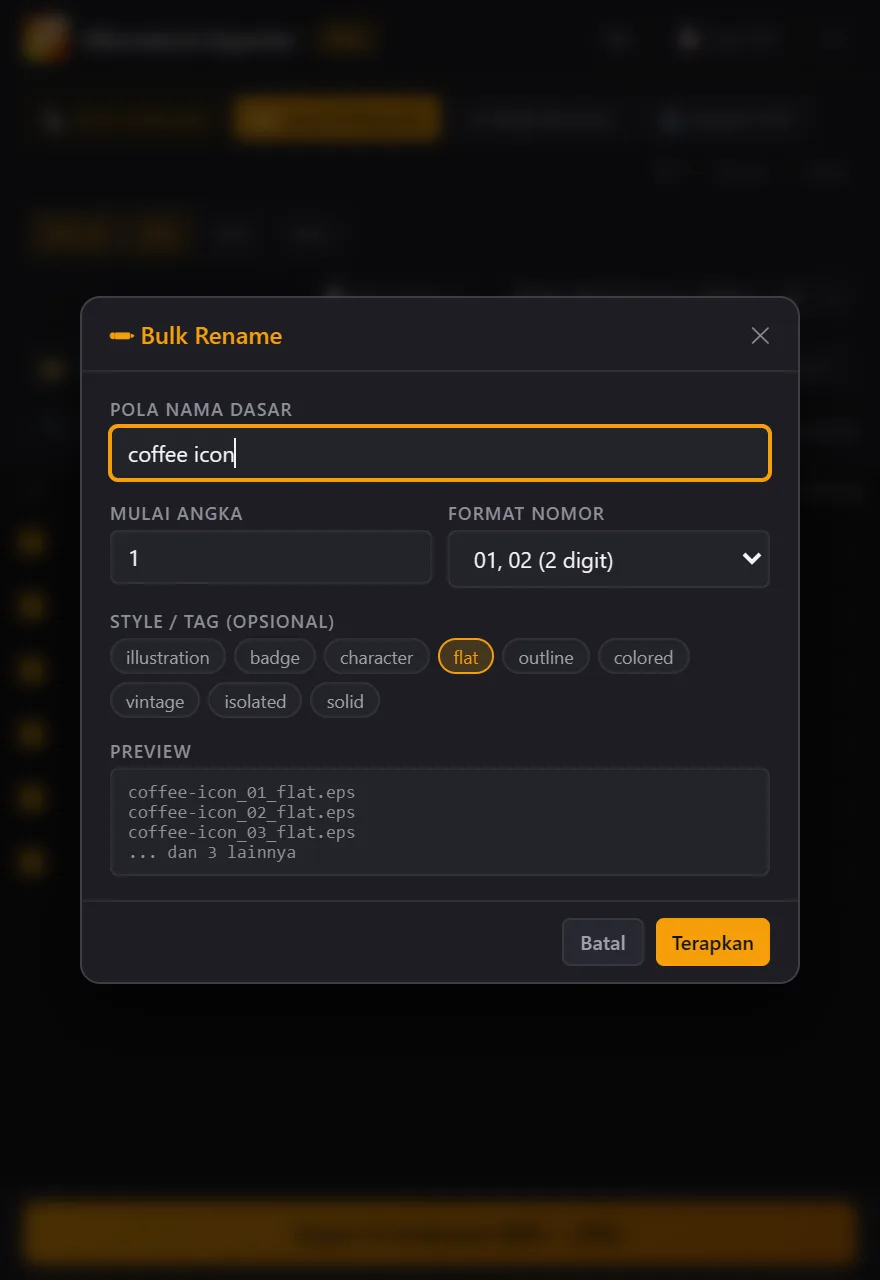
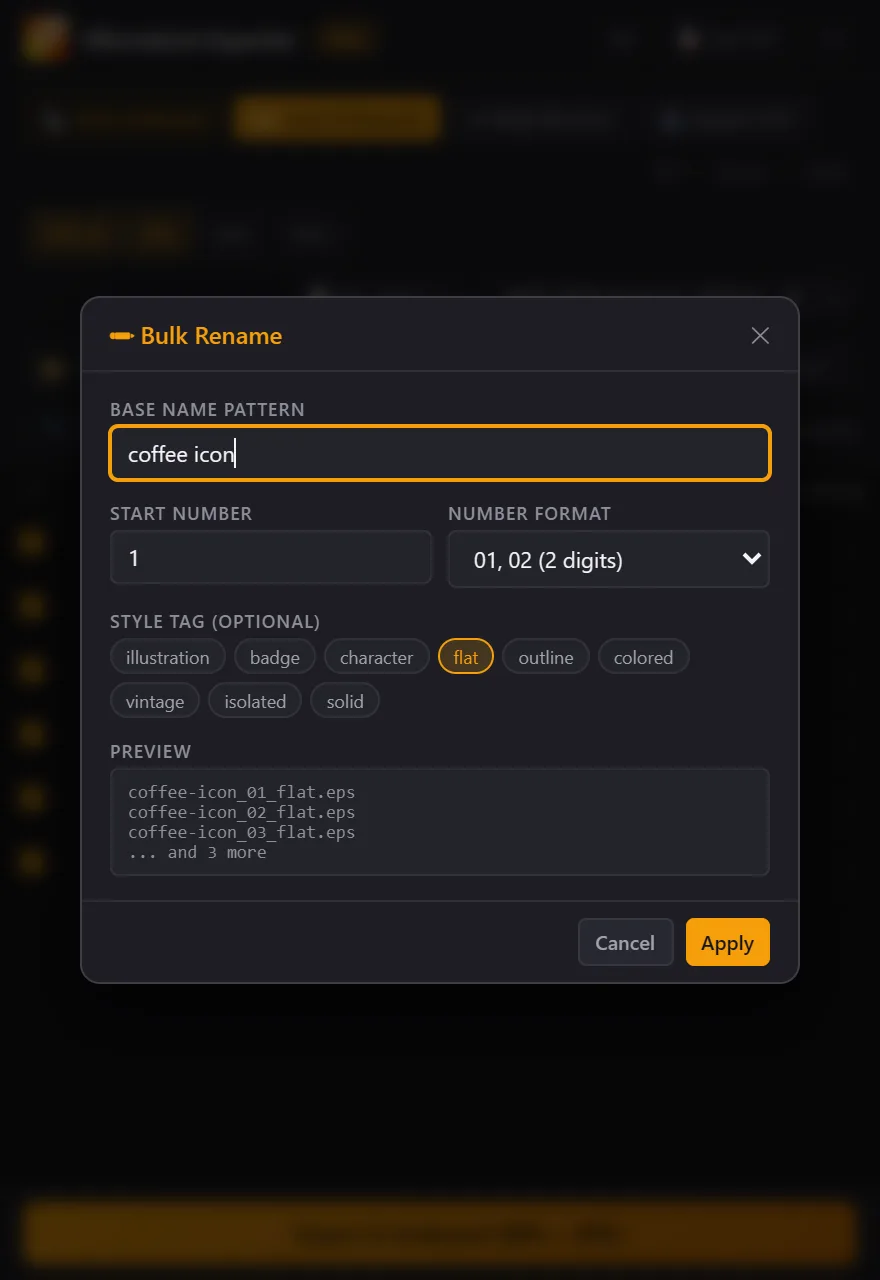
Memberi nama semua artboard yang dicentang dengan pola yang sama plus nomor urut: pola nama dasar, angka awal, format nomor (1, 01, atau 001), dan tag style opsional seperti flat. Kotak Preview menunjukkan tiga nama pertama. Contoh hasil: coffee-icon_01_flat, coffee-icon_02_flat.
Import TXT PRO
Memasangkan daftar nama dari file teks ke artboard secara berurutan: baris pertama ke artboard 1, baris kedua ke artboard 2, dan seterusnya. Pilih file .txt atau paste daftarnya, cek ringkasan pasangannya, lalu klik Terapkan.
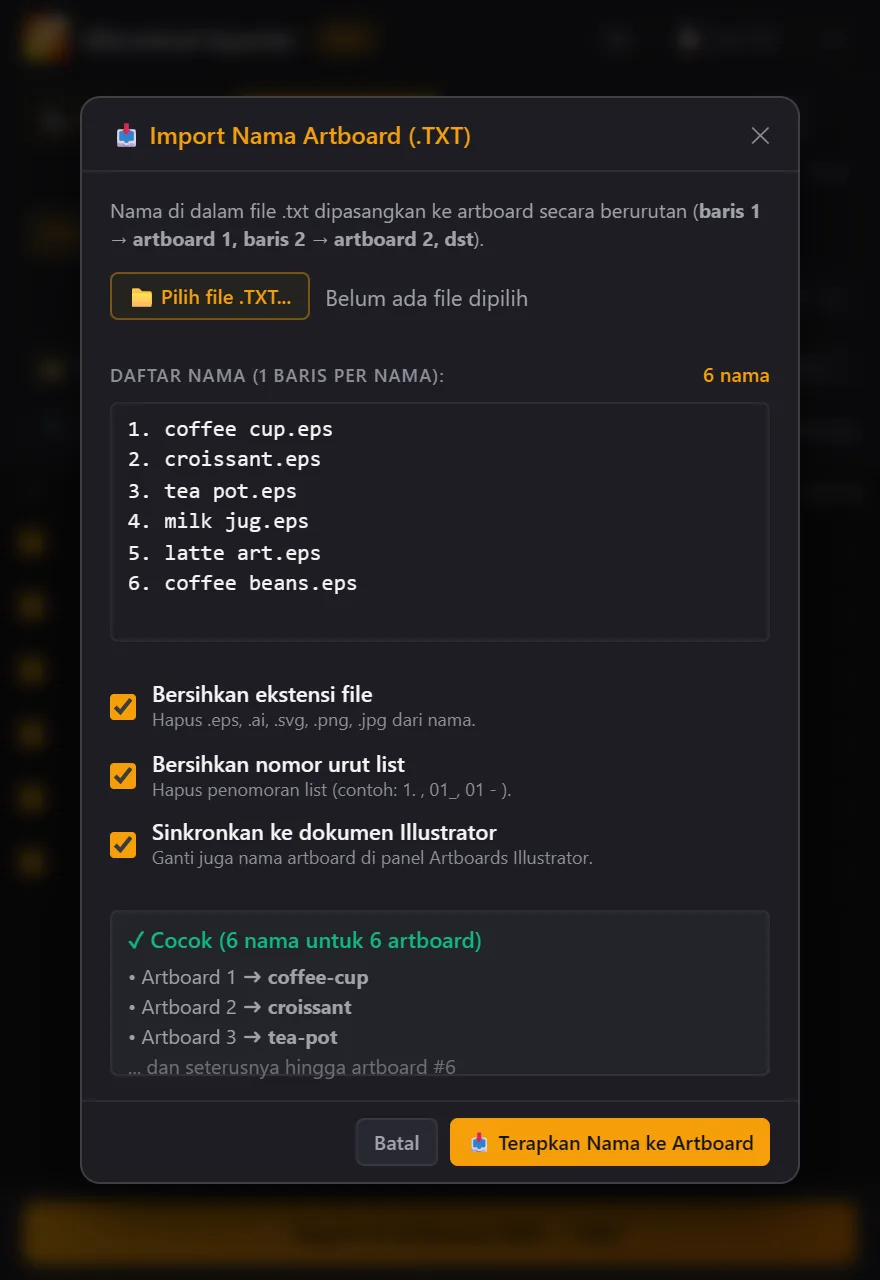
- Bersihkan ekstensi file membuang akhiran seperti
.epsdan.jpg. - Bersihkan nomor urut list membuang penomoran 1–3 digit di awal baris (
1.,01),#3), jadi nama seperti2024-new-yeartetap utuh. - Sinkronkan ke dokumen Illustrator ikut mengganti nama di panel Artboards Illustrator.
List TXT PRO
Menampilkan nama artboard yang dicentang, urut, untuk mengisi judul atau keyword di spreadsheet agensi. Bisa di-copy atau disimpan sebagai daftar_nama_icon.txt. Setiap export di mode PRO atau trial juga otomatis menyimpan file itu di folder tujuan.
Format, canvas, background
| Format | Hasil |
|---|---|
| EPS 10 | Kompatibel Illustrator 10, font di-embed, ada thumbnail. Mode warna mengikuti dokumen (RGB atau CMYK). |
| JPG | Kualitas 100, ukuran piksel sama dengan canvas (canvas 5000 px jadi JPG 5000 px). Selalu RGB. |
| PNG | 24-bit dengan latar transparan; background vektor selalu disembunyikan. Selalu RGB. |
| SVG | UTF-8, teks sebagai outline, gambar raster di-embed. |
SVG keluar dengan ukuran asli artboard, tanpa di-scale dan tanpa background. Cocok untuk ikon web atau aplikasi.
Ukuran canvas dan desain PRO
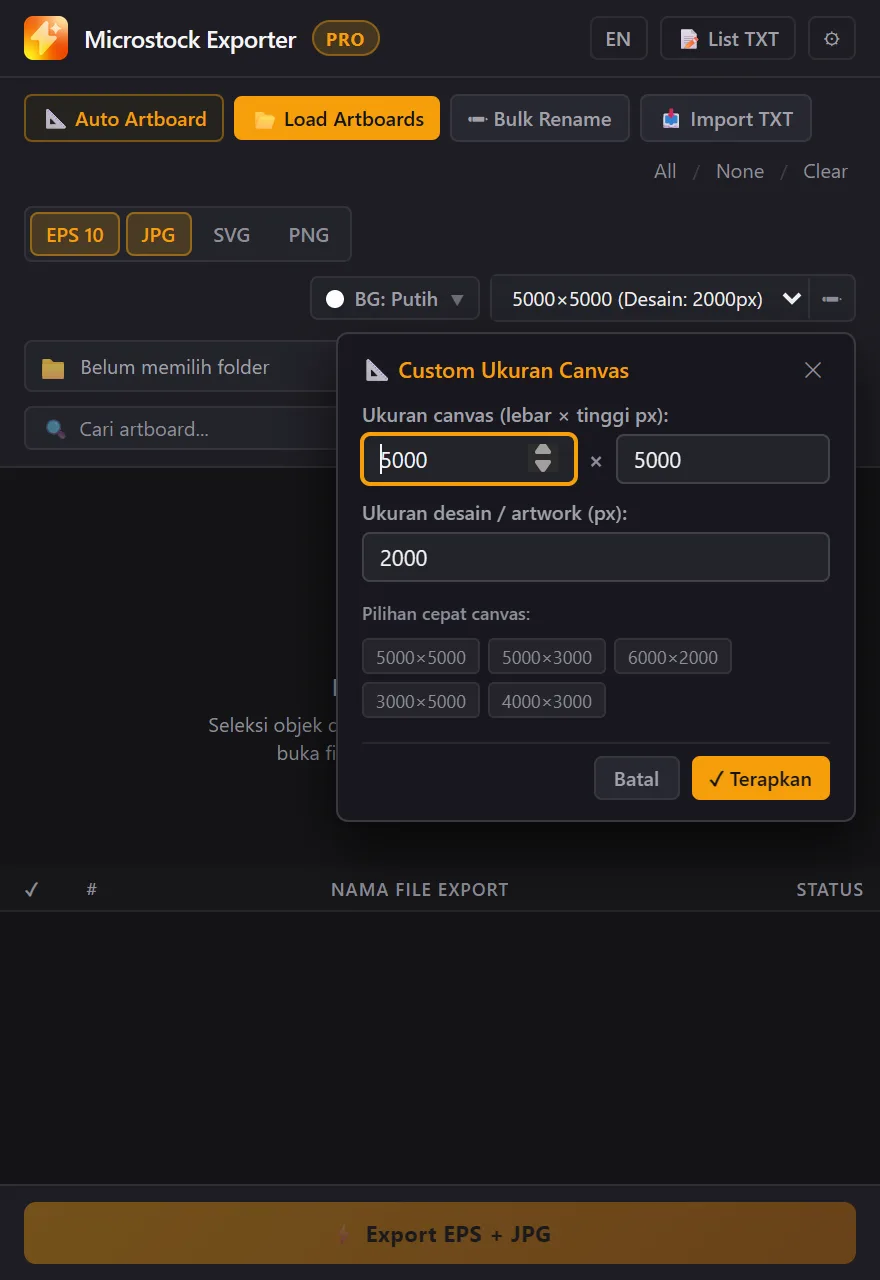
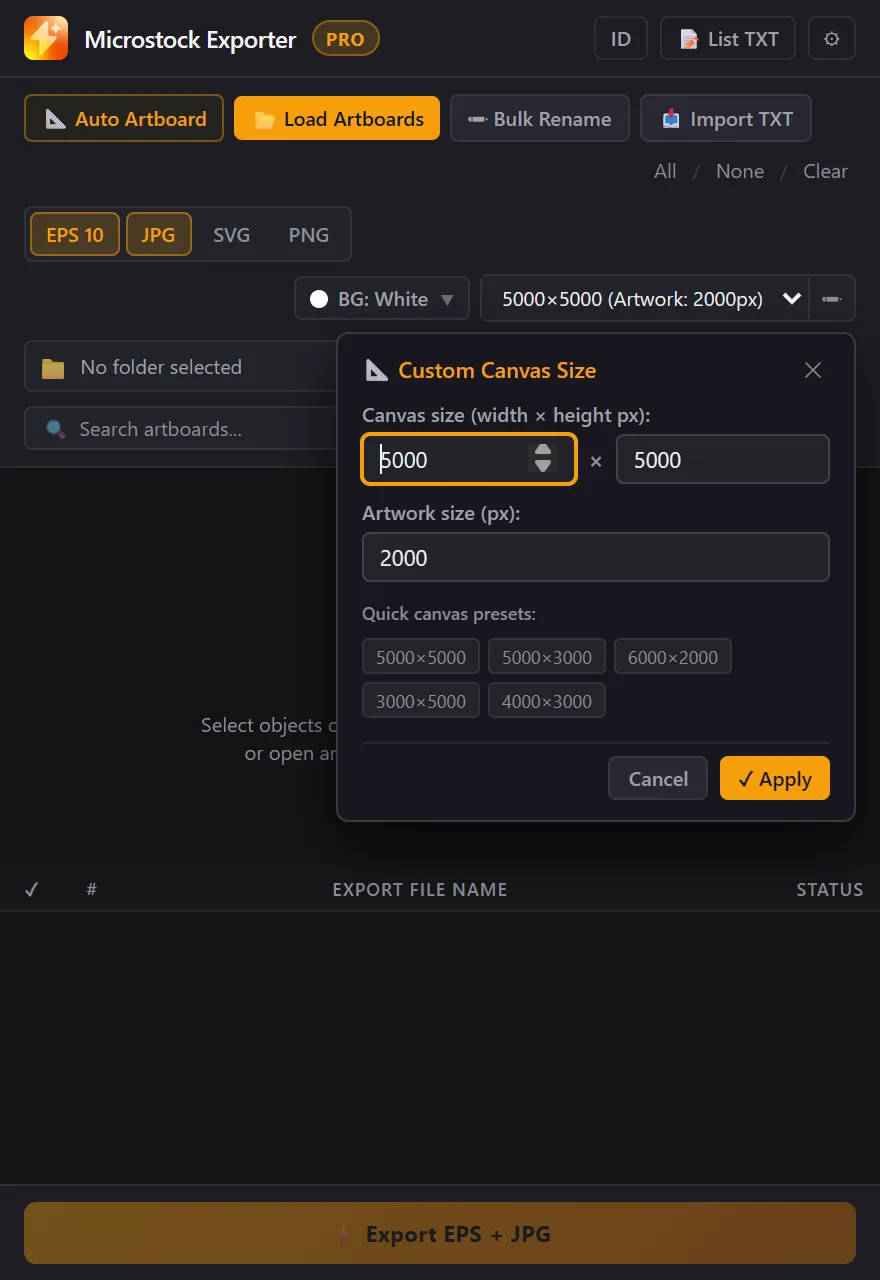
Dropdown ukuran berisi ukuran asli artboard, 5000×5000 (desain 2000 atau 3720 px), 5000×3000, 6000×2000, 3000×5000, 4000×3000, dan Custom. Selain ukuran asli, desain di-scale proporsional sampai sisi terpanjangnya sama dengan ukuran desain, lalu ditaruh di tengah canvas. Lewat tombol ✏, canvas bisa 100–16000 px.
Background vektor
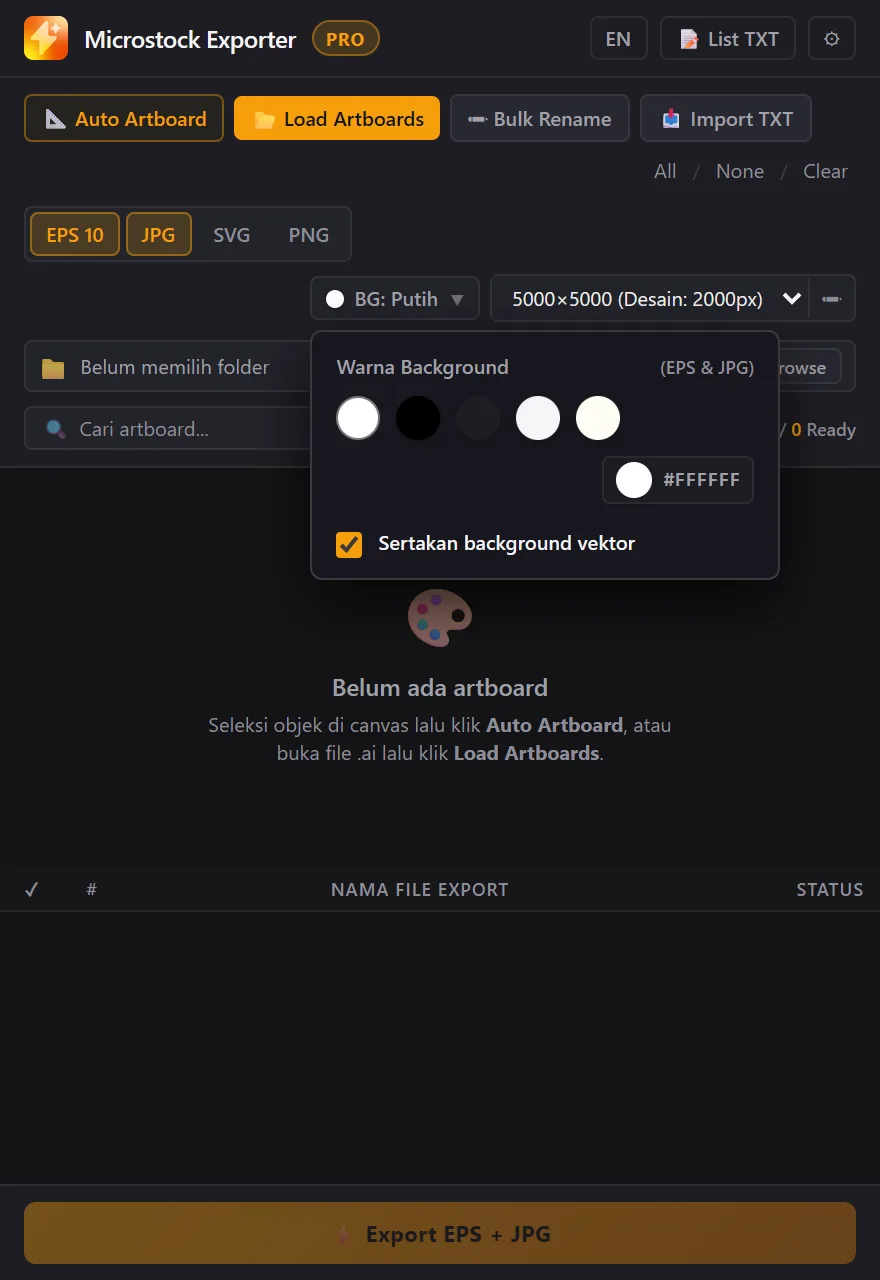
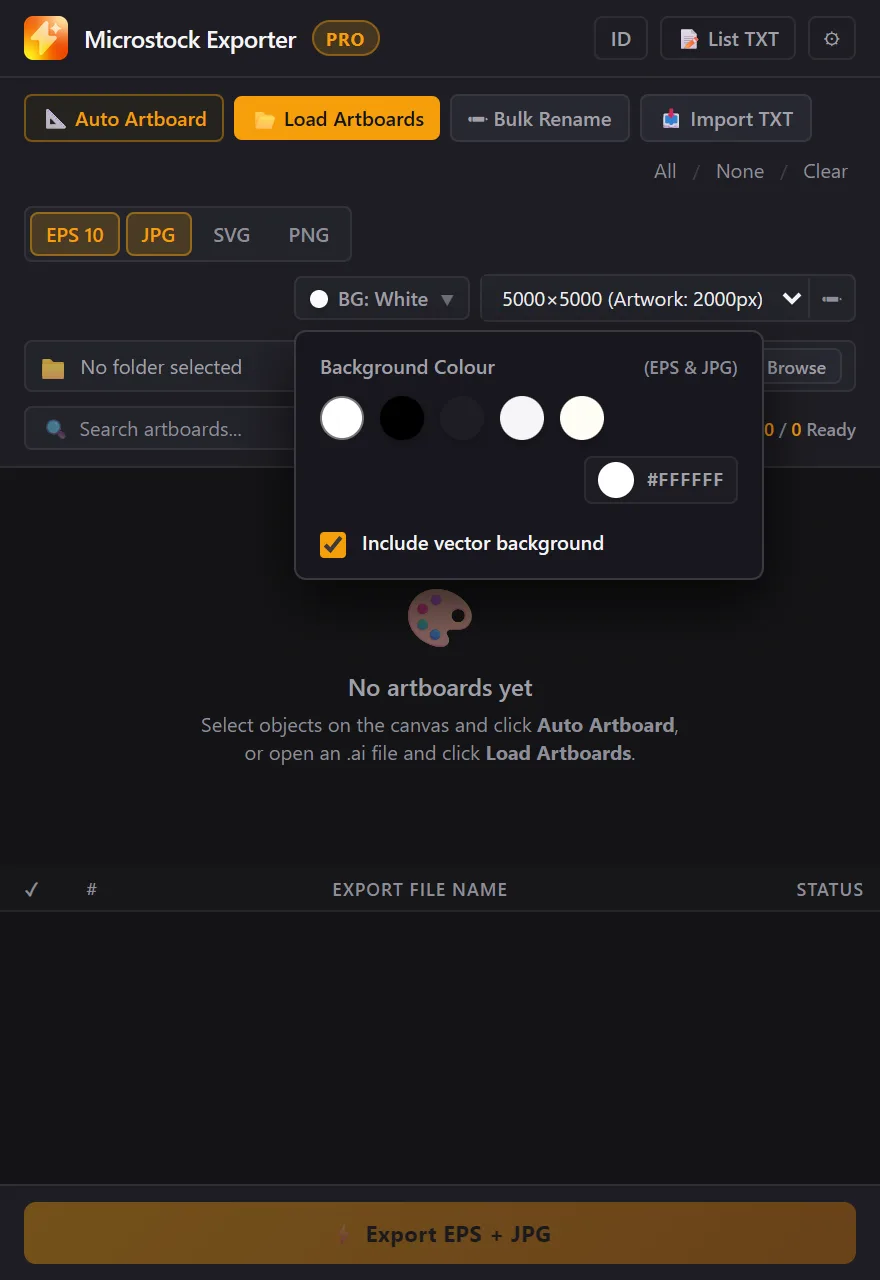
Panel menambahkan kotak vektor solid seukuran canvas di layer paling bawah. Klik BG untuk memilih putih, hitam, dark slate, soft gray, warm cream, atau warna sendiri (PRO), atau matikan Sertakan background vektor. Di dokumen CMYK, putih jadi 0/0/0/0 dan hitam 0/0/0/100.
Pre-flight dan file asli
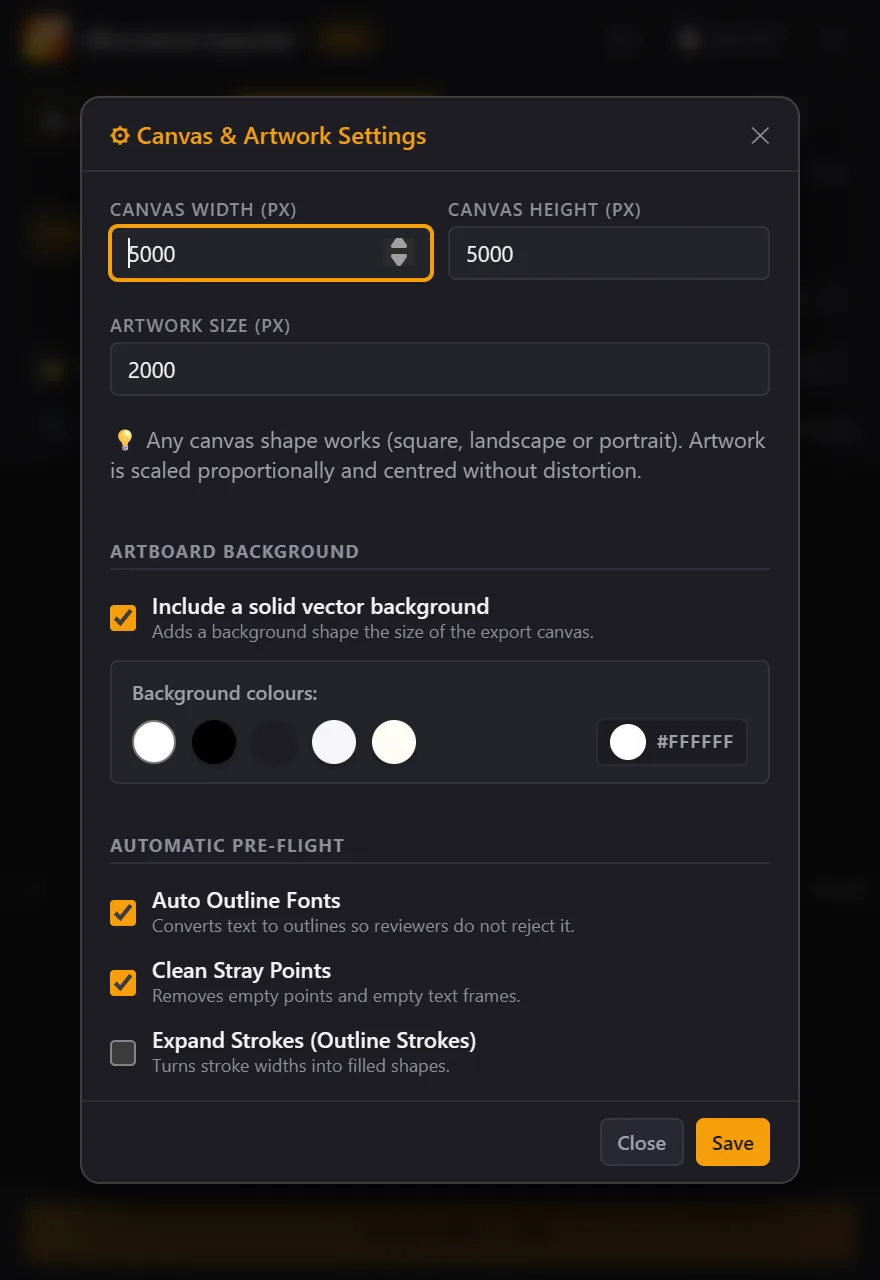
Pre-flight dijalankan pada salinan desain di dokumen export, bukan pada file .ai-mu.
- Auto Outline Fonts (bawaan nyala): teks jadi outline, jadi file nggak butuh font.
- Clean Stray Points (bawaan nyala): menghapus path satu titik dan frame teks kosong.
- Expand Strokes (PRO, bawaan mati): stroke jadi shape berisi, supaya ketebalan garis nggak berubah saat di-scale.
Objek dan layer yang dikunci tetap ikut di-export; yang disembunyikan tidak, termasuk yang tersembunyi di dalam group.
Karena kunci objek dibuka lalu dikunci lagi, Illustrator menandai dokumen "ada perubahan" (tanda * di tab). Boleh ditutup tanpa disimpan. Clipboard-mu juga terpakai selama export.
Proses export dan hasilnya
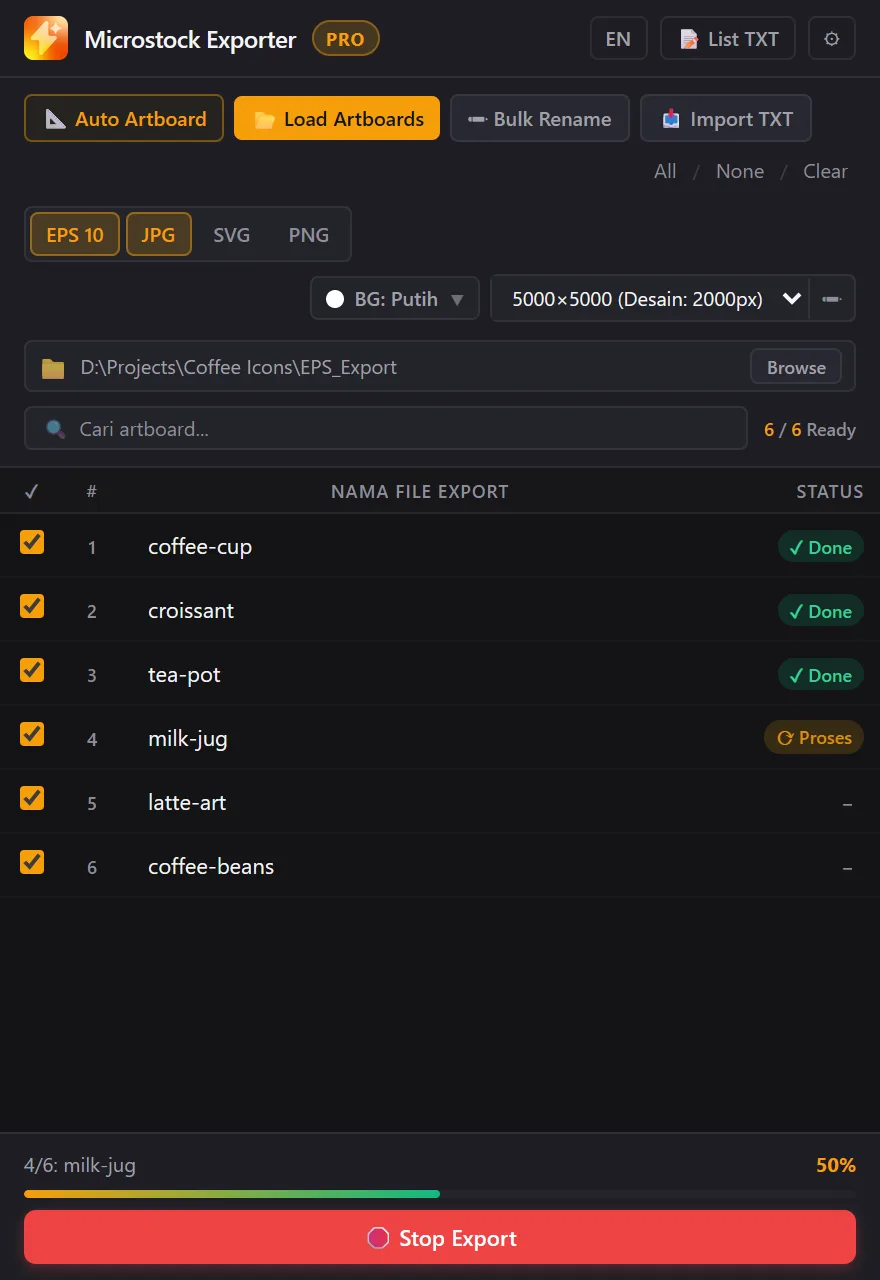
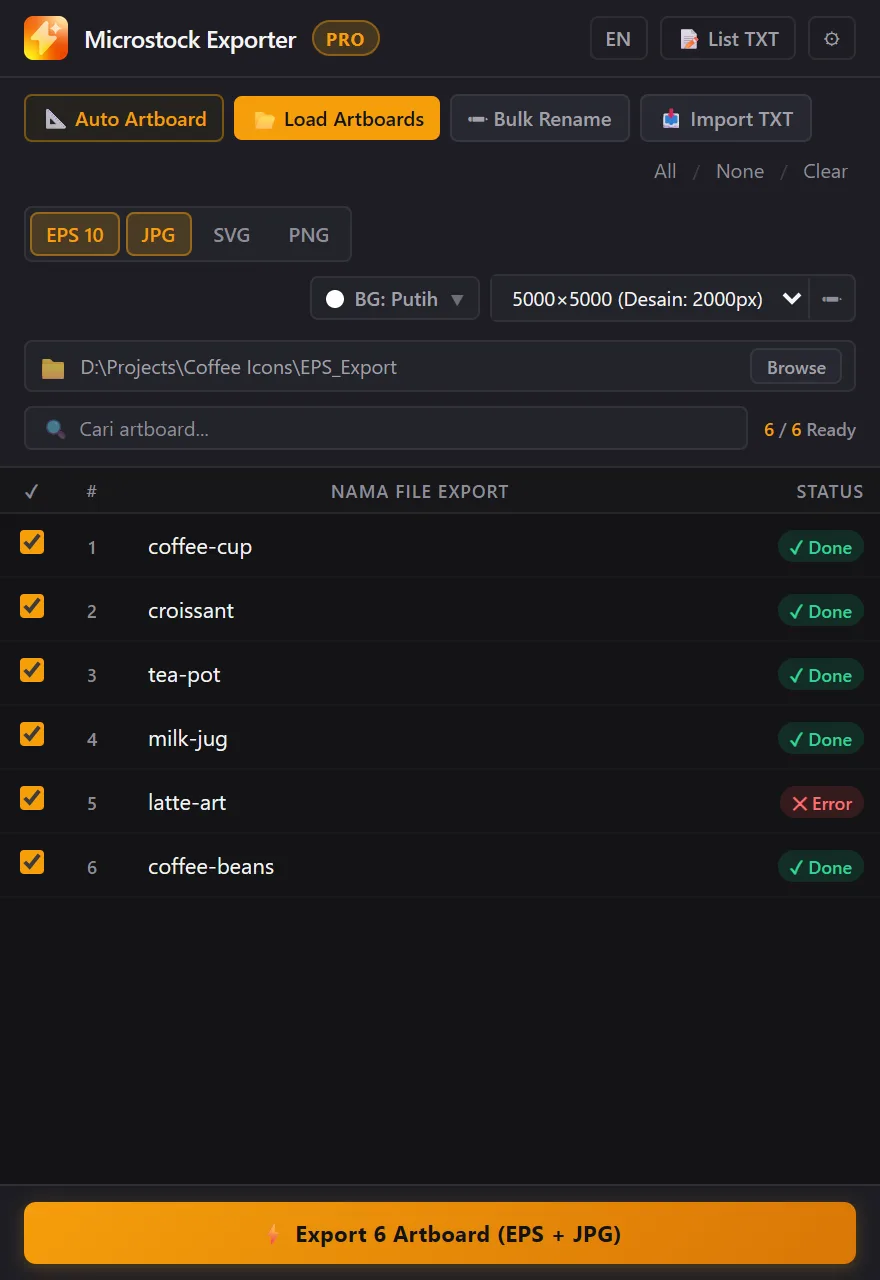
Artboard diproses satu per satu. Klik Stop Export untuk berhenti; artboard yang sedang dikerjakan diselesaikan dulu. Status ✕ Error berarti gagal: arahkan mouse ke labelnya untuk melihat penyebab. Artboard lain tetap diproses.
Untuk artboard bernama coffee-cup, folder tujuan berisi coffee-cup.eps, coffee-cup.jpg, coffee-cup.svg, dan coffee-cup.png sesuai format yang dipilih.
Kalau folder tujuan sudah berisi file bernama sama, file lama diganti tanpa konfirmasi. Pakai folder baru kalau mau menyimpan hasil sebelumnya.
Bahasa panel
Panel tersedia dalam Bahasa Indonesia dan English. Awalnya mengikuti bahasa Illustrator; klik EN atau ID di baris atas untuk mengganti.
Masalah umum
Panel nggak muncul di Window → Extensions
Tutup Illustrator, jalankan ulang install-windows.bat dari folder hasil ekstrak (bukan dari dalam zip), lalu buka Illustrator lagi.
"Tidak ada dokumen aktif"
Buka file .ai dulu, klik kanvasnya sekali, lalu ulangi.
Auto Artboard bilang "Seleksi dulu objek di canvas"
Seleksi objek dengan Selection Tool (V) sebelum klik Auto Artboard, dan pastikan objek nggak terkunci atau tersembunyi.
Error "Tidak ada objek yang ditemukan di artboard ini"
Artboard-nya kosong, atau semua objeknya disembunyikan. Tampilkan objeknya atau hilangkan centang baris itu.
Muncul "Nama duplikat"
Dua artboard punya nama yang sama (huruf besar dan kecil dianggap sama). Ubah salah satunya.
"Kuota FREE hari ini (10 artboard) sudah habis" atau "Trial PRO tersisa … artboard"
Kurangi artboard yang dicentang, tunggu kuota penuh lagi besok, atau upgrade ke PRO.
"Tidak bisa terhubung ke Gumroad"
Cek koneksi internet, VPN, atau firewall, lalu coba aktivasi lagi.
"License Key tidak ditemukan atau sudah dinonaktifkan"
Cek key yang kamu paste; key Gumroad berformat XXXXXXXX-XXXXXXXX-XXXXXXXX-XXXXXXXX. Kalau sudah benar, hubungi aku.
"Key ini sudah aktif di perangkat lain"
Satu key untuk satu komputer. Hubungi aku untuk reset perangkat.
"License Key tidak cocok untuk perangkat ini"
Key Lynk.id dibuat untuk Hardware ID tertentu. Pastikan Hardware ID yang kamu kirim sama dengan yang tampil di jendela lisensi komputer ini.
"Lisensi perlu dicek ulang"
Lisensi Gumroad belum bisa dicek lebih dari 30 hari. Sambungkan internet, lalu tutup dan buka lagi panel.
Warna JPG/PNG beda dengan EPS
JPG dan PNG selalu RGB, sedangkan EPS mengikuti mode warna dokumen. Dari dokumen CMYK, warnanya dikonversi ke RGB jadi bisa sedikit beda.
Apakah dataku dikirim ke internet?
Cuma License Key Gumroad yang dikirim ke Gumroad saat aktivasi dan pengecekan ulang. File desain, nama file, dan Hardware ID nggak dikirim ke mana pun. Lihat juga Lisensi dan Privasi.
Setiap agensi punya aturan teknis sendiri yang bisa berubah, jadi cek juga panduan kontributor terbaru di situs agensimu.
Guide · version 2.0
Microstock Exporter Pro guide
From install to upload-ready files. Every screenshot comes from the version 2.0 panel; the file names in them are only examples.
Before you start
| Component | Requirement |
|---|---|
| Application | Adobe Illustrator CC 2019 or later |
| Operating system | Windows 10 or 11. There is no Mac version yet. |
| Internet | Only for Gumroad licence activation and the periodic re-check. Exporting works offline. |
A few terms: the panel is the Microstock Exporter Pro window inside Illustrator, an artboard is a work area in your .ai file, and the canvas is the page size of each exported file.
Install on Windows
- Close Adobe Illustrator. The installer must run while Illustrator is closed.
- Extract the zip. Right-click it and choose Extract All. Do not run the installer from inside the zip.
- Double-click
install-windows.batin the extracted folder. A black window shows three steps and thenINSTALLASI BERHASIL! (INSTALLATION COMPLETE). Press any key to close it. - Open Illustrator and choose
Window → Extensions → Microstock Exporter Pro.
Click More info, then Run anyway. Windows shows this for script files without a digital signature.
What the installer does
It turns on Adobe's PlayerDebugMode setting in your Windows user registry (needed for extensions installed outside Adobe Exchange) and copies the extension to %APPDATA%\Adobe\CEP\extensions\MicrostockExporter. An older version in that folder is replaced. Your settings, licence, and remaining quota are kept.
Updating
Close Illustrator, extract the new zip, and run its install-windows.bat. An active licence does not need to be activated again.
Uninstalling
Close Illustrator and double-click uninstall-windows.bat.
FREE, trial, and PRO
Everyone installs the same extension. What unlocks depends on the licence status on your computer, always shown in the small badge next to the panel name: TRIAL, FREE, or PRO.
PRO trial: your first 30 artboards
After installing, the panel is in TRIAL and every PRO feature works for the first 30 artboards you export successfully. What is left shows under the Export button, for example PRO TRIAL: 24 of 30 artboards left.. When the trial runs out, the panel switches to FREE.
Daily FREE quota
In FREE you can export EPS 10 at the original size with a white background, up to 10 artboards a day. The quota refills at midnight by your computer's clock. PRO features stay visible with a small PRO label.
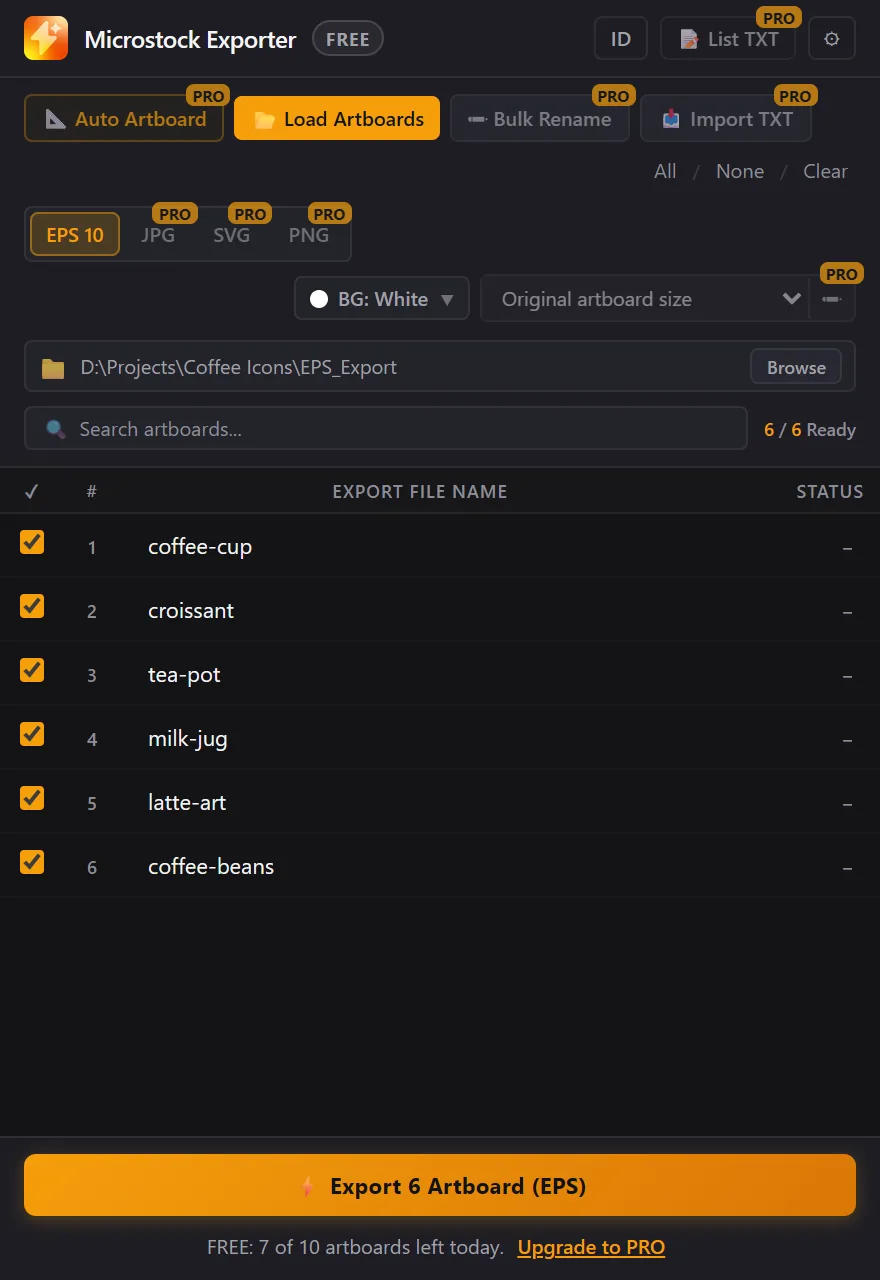
| Feature | FREE | PRO trial and PRO |
|---|---|---|
| Load artboards and rename by hand | Yes | Yes |
| EPS 10 export | Original artboard size | Any size |
| Export count | 10 artboards a day | Unlimited (trial: 30 in total) |
| White background, outline text, remove stray points | Yes | Yes |
| JPG, SVG, PNG export | No | Yes |
| Canvas presets and custom sizes | No | Yes |
| Background colours other than white | No | Yes |
| Auto Artboard, Bulk Rename, Import TXT, List TXT, Expand Strokes | No | Yes |
Activate PRO
Click the TRIAL or FREE badge at the top left of the panel to open the licence window. It shows your status, buttons to buy on Gumroad or Lynk.id, the License Key field, and this computer's Hardware ID. One licence covers one computer.
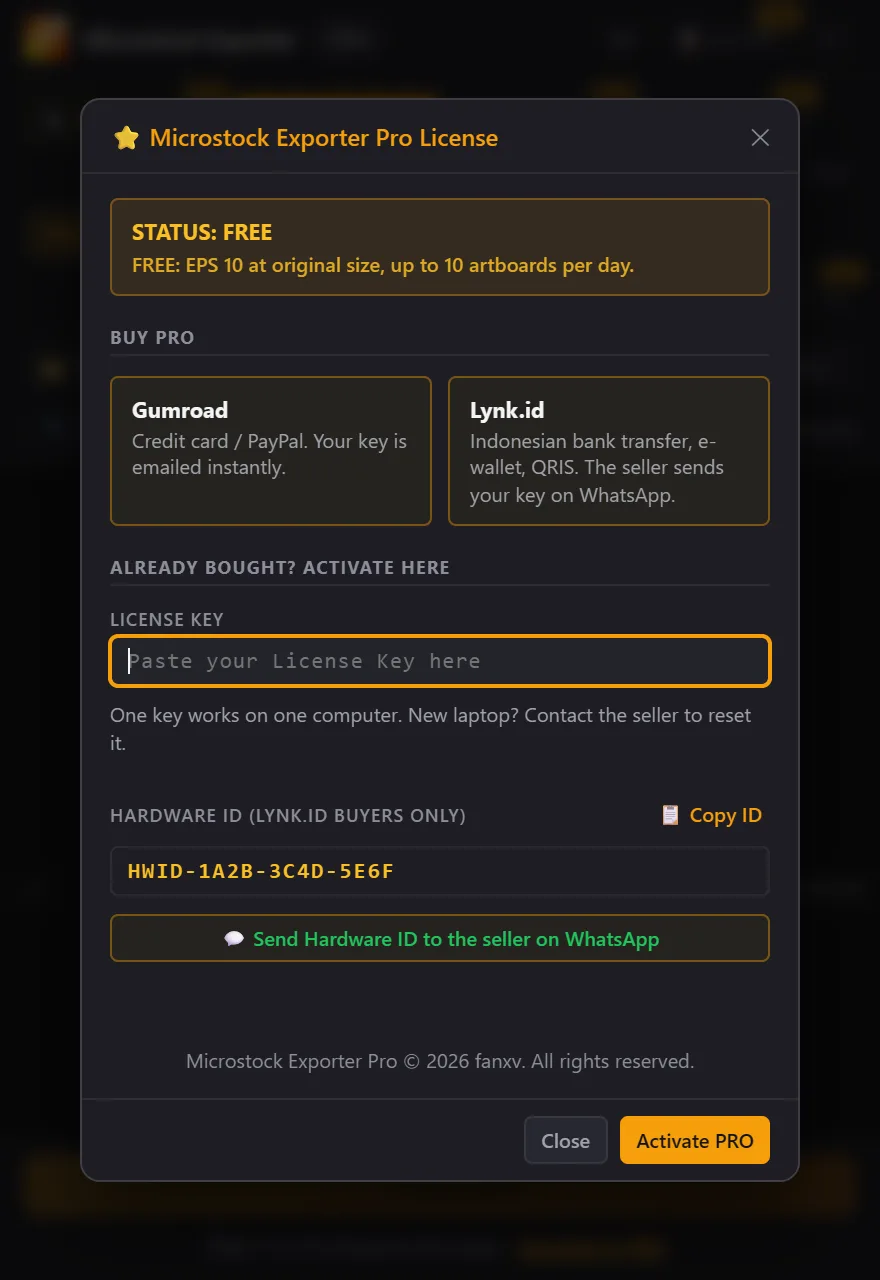
Buying on Gumroad (card, PayPal)
- Click the Gumroad button in the licence window and complete the payment.
- Gumroad emails you a download link and a License Key in the form
XXXXXXXX-XXXXXXXX-XXXXXXXX-XXXXXXXX. - Make sure you are online, paste the key into the License Key field, and click Activate PRO.
Gumroad licences re-check automatically every 14 days when the panel opens online. Offline, the panel stays PRO for up to 30 days after the last successful check.
Buying on Lynk.id (Indonesian bank transfer, e-wallet, QRIS)
- Click the Lynk.id button in the licence window and complete the payment.
- Click Send Hardware ID to the seller on WhatsApp. WhatsApp opens with your computer's Hardware ID (
HWID-XXXX-XXXX-XXXX). Send the message. - I send back a License Key made for your computer, starting with
MSE1-. - Paste it into the License Key field and click Activate PRO. Lynk.id activation works offline.
New computer or Windows reinstall
Contact me with your proof of purchase. Gumroad buyers: I reset your device slot and you activate the same key on the new computer. Lynk.id buyers: send the new computer's Hardware ID and I send a new key.
The panel at a glance
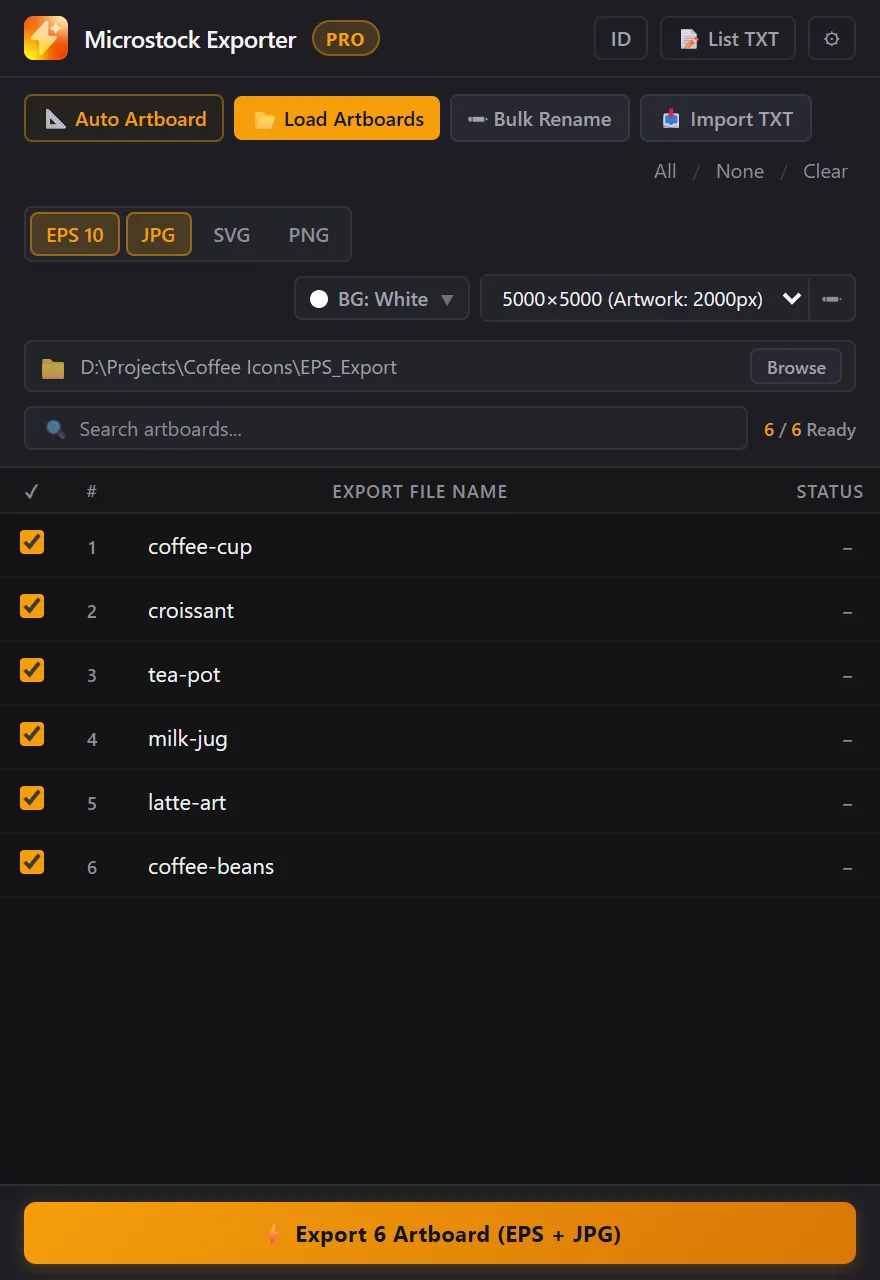
- Top row: licence badge, EN/ID language button, List TXT, and ⚙ for canvas, background, and pre-flight settings.
- Action buttons: Auto Artboard, Load Artboards, Bulk Rename, Import TXT, then All / None / Clear to select rows or clear names.
- Formats and size: EPS 10, JPG, SVG, PNG (click to toggle), BG for the background colour, the size dropdown, and ✏ for a custom size.
- Folder and table: output folder with Browse, artboard search, and the table of checkboxes, numbers, export names, and status.
6 / 6 Readymeans artboards ready to export out of the total. - Bottom: the Export button with the artboard and format count, plus your remaining trial or FREE quota.
It turns on once at least one artboard is ticked and named, an output folder is set, and at least one format is selected.
Quick workflow
For a master file holding many icons or illustrations.
- Prepare the file. Open the .ai file and group each design (Ctrl+G) so one design is one object.
- Make artboards. Select all designs (Ctrl+A), click Auto Artboard, then Create Artboards. If the file already has artboards, click Load Artboards instead.
- Name them. Type in the table, use Bulk Rename, or Import TXT.
- Choose the output. Formats, canvas size, and background colour.
- Choose a folder. Click Browse. If you skip it, the panel uses an
EPS_Exportsubfolder next to the .ai file. - Export. Click Export and wait until every row says Done.
If the file has never been saved, the default folder becomes Documents\EPS_Export. Save first so the exports land next to the master file.
Making and loading artboards
Auto Artboard PRO
Creates one artboard for every selected object, left to right and then top to bottom. Objects whose centres are less than 20 pt apart vertically count as one row. Locked or hidden objects are skipped.
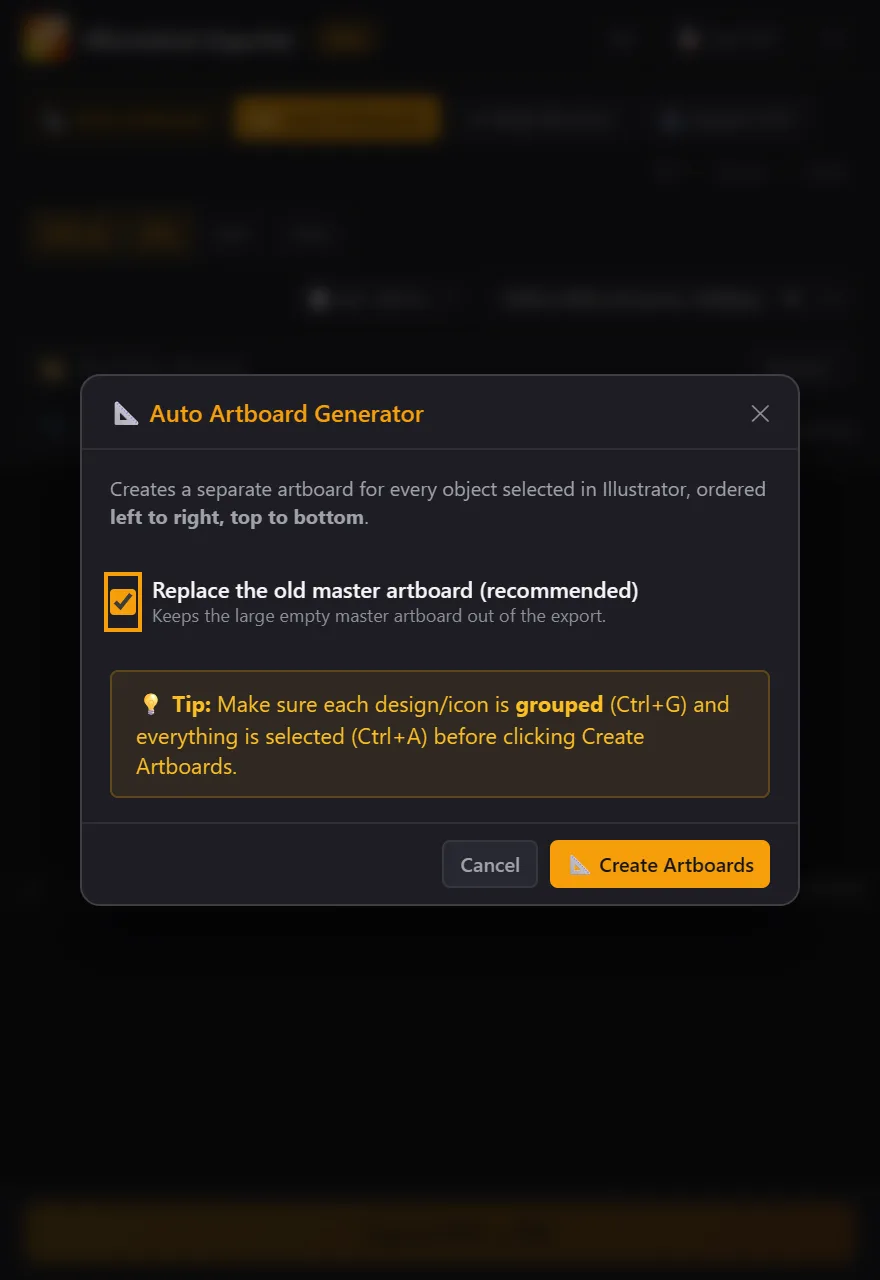
When ticked (the default), the first artboard is resized to the first object and every other artboard in the document is removed before the new ones are made. Your artwork is not deleted. Untick it if you want to keep existing artboards. Ctrl+Z in Illustrator undoes it.
Load Artboards
Loads every artboard of the active document into the table and ticks them. Artboards with default names like Artboard 1 are left blank for you to name; other names are tidied automatically. A folder you picked with Browse is never replaced.
Naming files
Naming rules
Names are tidied when you finish typing and again before export:
| Rule | Example |
|---|---|
| Spaces become hyphens | Monthly Budget → Monthly-Budget |
/ \ : * ? " < > | become underscores | icon:car → icon_car |
| Double hyphens collapse; leading and trailing ones go | --logo-- → logo |
The EPS, JPG, SVG, and PNG of one artboard always share a name. The same name twice (case-insensitive) stops the export with a Duplicate names message.
Bulk Rename PRO
Names every ticked artboard from one pattern plus a number: base name, start number, number format (1, 01, or 001), and an optional style tag such as flat. The preview shows the first three names. Example: coffee-icon_01_flat, coffee-icon_02_flat.
Import TXT PRO
Matches a list of names from a text file to your artboards in order: line 1 to artboard 1, line 2 to artboard 2, and so on. Pick a .txt file or paste the list, check the summary, and apply.
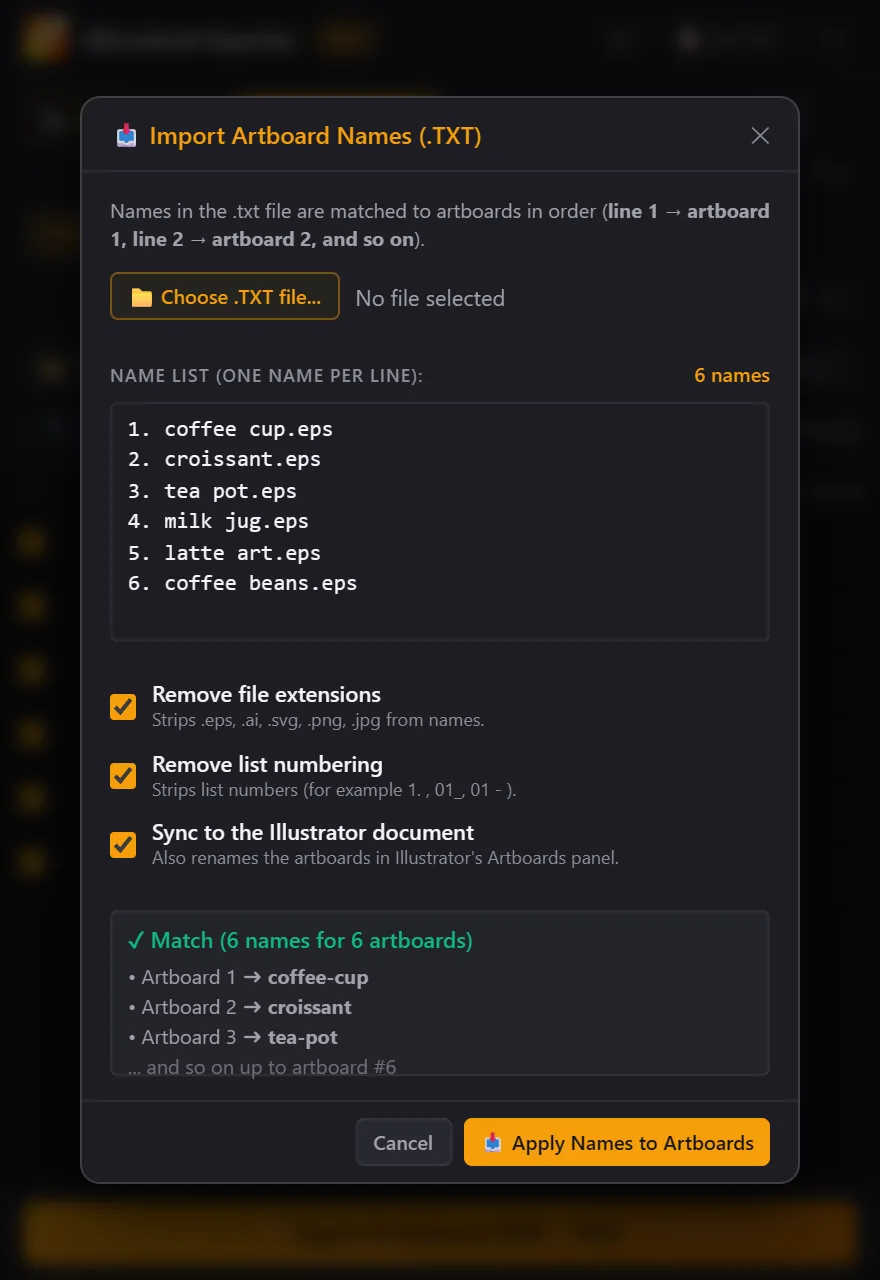
- Remove file extensions strips endings like
.epsand.jpg. - Remove list numbering strips 1–3 digit numbering at the start of a line (
1.,01),#3), so names like2024-new-yearstay whole. - Sync to the Illustrator document also renames the artboards in Illustrator's Artboards panel.
List TXT PRO
Shows the ticked artboard names in order, for filling titles or keywords in an agency spreadsheet. Copy it or save it as daftar_nama_icon.txt. Every PRO or trial export also saves that file in the output folder.
Formats, canvas, background
| Format | Output |
|---|---|
| EPS 10 | Illustrator 10 compatible, fonts embedded, thumbnail included. Colour mode follows the document (RGB or CMYK). |
| JPG | Quality 100, pixel size equals the canvas (a 5000 px canvas gives a 5000 px JPG). Always RGB. |
| PNG | 24-bit with a transparent background; the vector background is always hidden. Always RGB. |
| SVG | UTF-8, text as outlines, raster images embedded. |
SVG is exported at the original artboard size, unscaled and without a background. Handy for web or app icons.
Canvas and artwork size PRO
The size dropdown offers the original artboard size, 5000×5000 (artwork 2000 or 3720 px), 5000×3000, 6000×2000, 3000×5000, 4000×3000, and Custom. Except at original size, artwork is scaled proportionally until its longest side matches the artwork size, then centred. With ✏ the canvas can be 100–16000 px.
Vector background
The panel adds a solid vector rectangle the size of the canvas on the bottom layer. Click BG for white, black, dark slate, soft gray, warm cream, or your own colour (PRO), or untick Include vector background. In CMYK documents white becomes 0/0/0/0 and black 0/0/0/100.
Pre-flight and your original file
Pre-flight runs on a copy of your artwork inside the export document, never on your .ai file.
- Auto Outline Fonts (on by default): text becomes outlines, so files need no fonts.
- Clean Stray Points (on by default): removes single-point paths and empty text frames.
- Expand Strokes (PRO, off by default): turns strokes into filled shapes so line weights stay right when scaled.
Locked objects and layers are exported; hidden ones are not, including hidden objects inside groups.
Because locks are lifted and restored, Illustrator marks the document as changed (the * on its tab). You can close it without saving. Your clipboard is used during export.
Exporting and the results
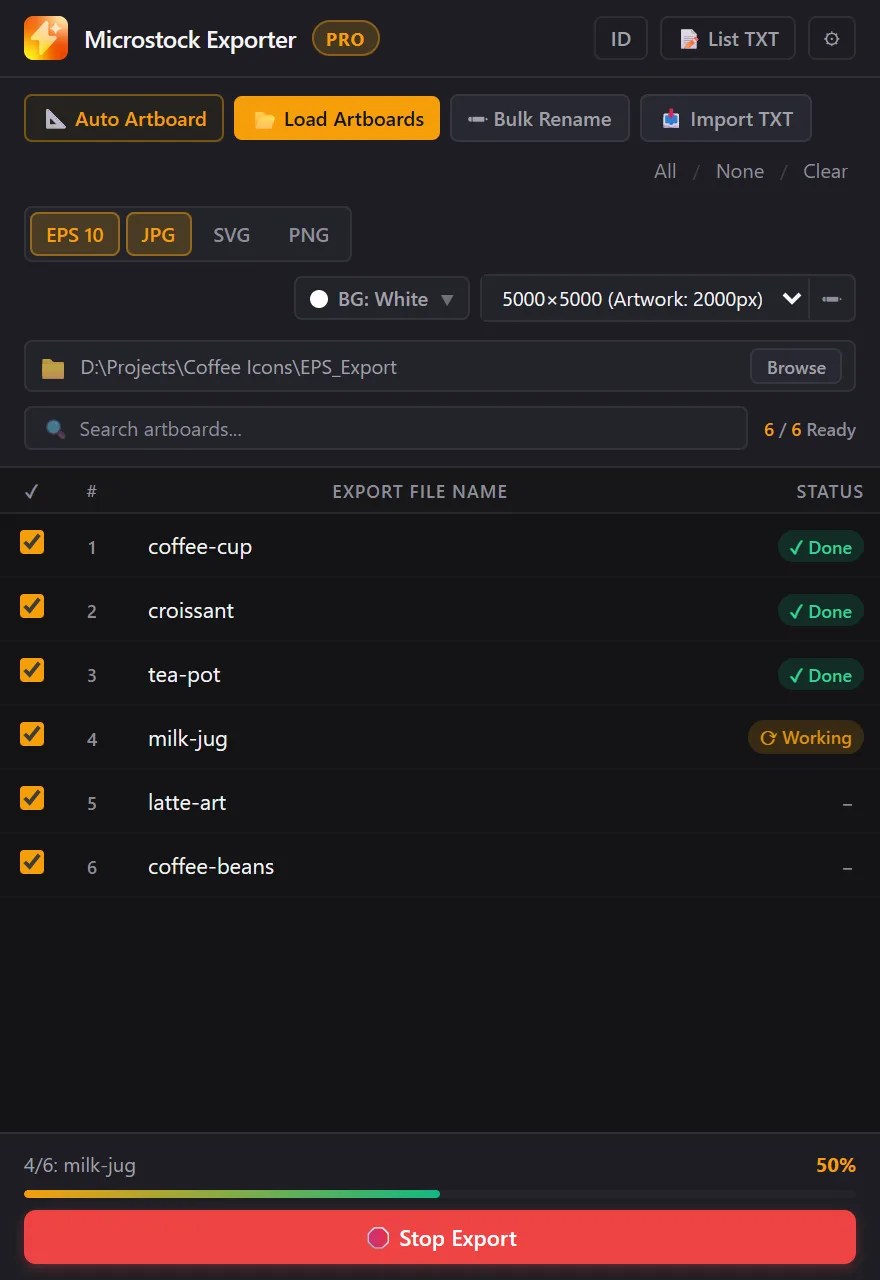
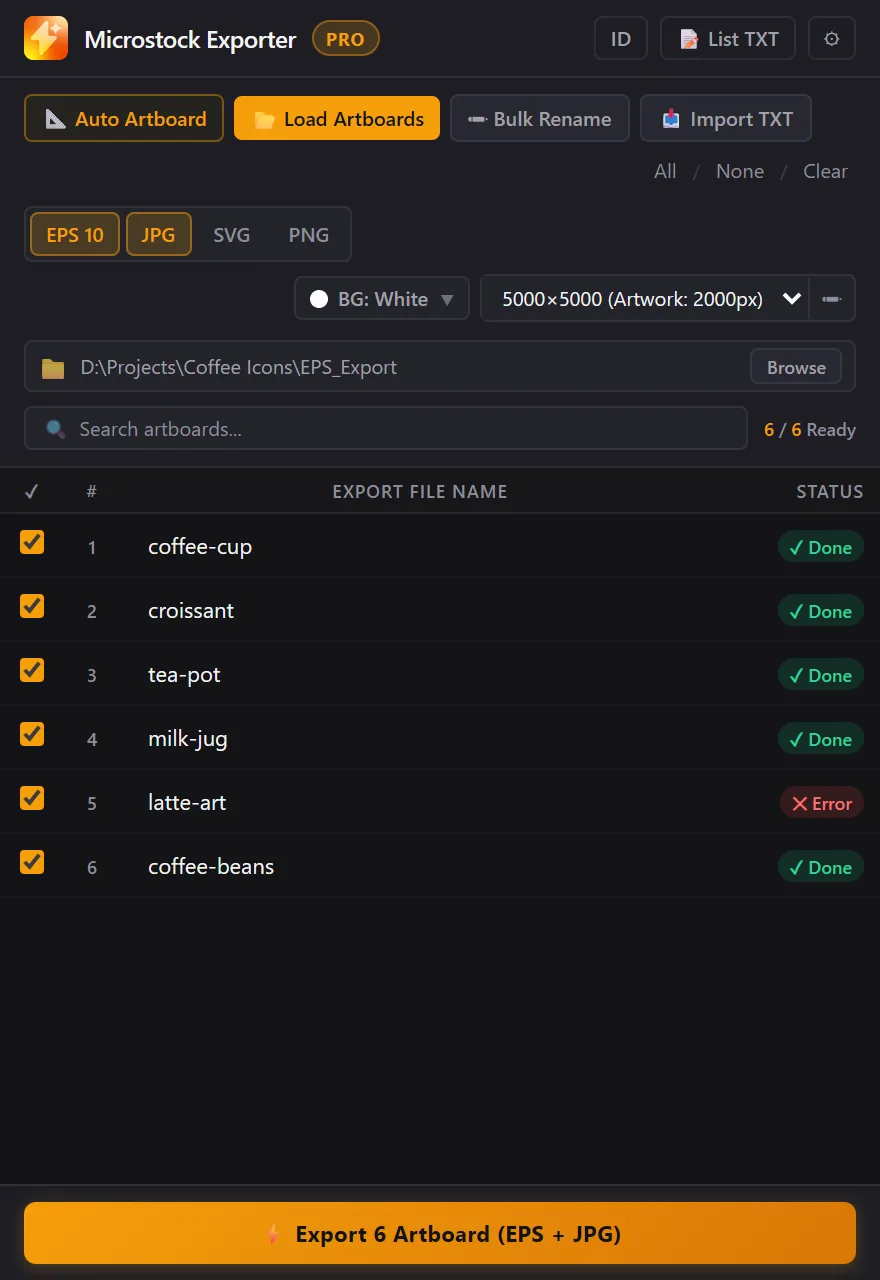
Artboards are processed one at a time. Click Stop Export to stop; the current artboard finishes first. ✕ Error means that artboard failed: hover the label to see why. The others carry on.
For an artboard named coffee-cup, the output folder gets coffee-cup.eps, coffee-cup.jpg, coffee-cup.svg, and coffee-cup.png, depending on the formats you picked.
If the folder already has a file with the same name, it is replaced without asking. Use a new folder to keep earlier results.
Panel language
The panel runs in English and Indonesian. It starts in Illustrator's language; click EN or ID in the top row to switch.
Troubleshooting
The panel is missing from Window → Extensions
Close Illustrator, run install-windows.bat again from the extracted folder (not from inside the zip), and reopen Illustrator.
"No active document"
Open an .ai file first, click its canvas once, and try again.
Auto Artboard says "Select the objects on the canvas that need artboards first"
Select the objects with the Selection Tool (V) before clicking Auto Artboard, and make sure they are not locked or hidden.
Error "No objects found on this artboard."
The artboard is empty or everything on it is hidden. Show the objects or untick that row.
"Duplicate names"
Two artboards share a name (case-insensitive). Rename one of them.
"Today's FREE quota (10 artboards) is used up" or "… PRO trial artboards left"
Tick fewer artboards, wait for the quota to refill tomorrow, or upgrade to PRO.
"Could not reach Gumroad"
Check your internet connection, VPN, or firewall, then try activating again.
"License Key not found, or the seller has disabled it"
Check the key you pasted; Gumroad keys look like XXXXXXXX-XXXXXXXX-XXXXXXXX-XXXXXXXX. If it is correct, contact me.
"This key is already active on another computer"
One key works on one computer. Contact me for a device reset.
"This License Key does not match this computer"
Lynk.id keys are made for one Hardware ID. Make sure the ID you sent matches the one in this computer's licence window.
"Your license needs a quick check"
The Gumroad licence has not been checked for over 30 days. Connect to the internet, then close and reopen the panel.
JPG/PNG colours differ from the EPS
JPG and PNG are always RGB, while EPS follows the document's colour mode. From a CMYK document the colours are converted to RGB and can shift slightly.
Is any of my data sent online?
Only the Gumroad License Key, to Gumroad, on activation and re-checks. Designs, file names, and the Hardware ID are never sent anywhere. See also Licence and Privacy.
Every agency has its own technical rules, and they change, so check your agency's latest contributor guide too.